
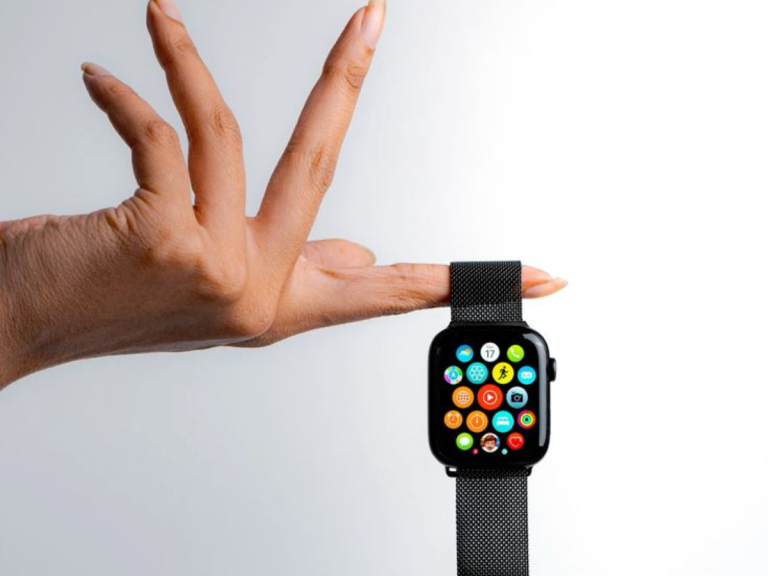
The Apple Watch is one of the world’s most popular fitness wearables, yet many of its most useful training and recovery features remain underused.
Beyond activity rings and basic workout tracking, Apple has quietly built in tools that allow for smarter goal-setting, more accurate performance data, and better recovery management. From customizable rest days to advanced interval training and sleep optimization, these features can help users train more efficiently, not just harder.
Here are 10 fitness-focused Apple Watch tips that can significantly improve how users track, train, and recover.
1. Schedule Rest Days for Your Activity Rings
Apple’s Fitness app tracks movement through three daily goals : Move, Exercise, and Stand. What many users don’t realize is that these goals no longer have to be the same every day.
Apple Watch now allows users to set different ring targets by day of the week, making it easier to account for rest days or lighter training sessions. Goals can also be adjusted temporarily for travel or recovery days.
The option is available in the Fitness app under the Activity Rings view.
2. Wear the Watch Somewhere Other Than Your Wrist
While the Apple Watch is designed for wrist use, it can still track movement when worn elsewhere. For workouts like weightlifting, kettlebell training, or activities that require wrist wraps, wearing the watch on the upper arm or ankle can improve comfort and step detection.
The device will continue logging activity even when wrist placement isn’t practical
3. Switch to List View for Faster App Access
The default app grid on Apple Watch can be difficult to navigate during workouts. Switching to List View displays apps in an alphabetical list with labels, making it easier to find what you need while moving.
To enable it, press the Digital Crown and scroll to the bottom of the app launcher
4. Create Custom Interval Workouts
Apple’s Workout app supports fully customizable interval training. Users can set timed work and rest periods or distance-based intervals for activities such as running, cycling, and high-intensity training.
While workouts can be configured directly on the watch, setting them up through the iPhone’s Fitness app is faster and more precise
5. Race Against Your Past Performance
For runners and cyclists who repeat the same routes, Apple Watch offers a “Race Route” feature. After completing a route multiple times, users can compete against their previous or best performance.
During the workout, the watch shows whether the current pace is ahead of or behind the comparison run; a simple way to add motivation without external apps
6. Track Workouts Without Wearing the Watch
Recent versions of iOS allow workouts to be recorded directly on the iPhone, even if the Apple Watch is left behind.
Outdoor activities use the phone’s GPS, while indoor workouts are tracked by duration. If a Bluetooth heart-rate monitor is connected, heart-rate data is still included, and the session counts toward overall training metrics.
7. Sync With a Treadmill for Better Accuracy
Many commercial treadmills support Apple’s GymKit, which allows the watch to sync speed, distance, and incline data directly from the machine.
When enabled in Workout settings, the watch pairs automatically by tapping it against the treadmill’s reader, improving accuracy for indoor runs and walks.
8. Use Short Charging Sessions Before Bed
Sleep tracking requires overnight wear, but newer Apple Watch models charge quickly enough that extended charging breaks aren’t always necessary.
A brief charging session before bedtime is often enough to last through the night, making it easier to collect consistent sleep data without disrupting daytime use.
9. Use the “Other” Workout for Missed Activities
Not all physical labor fits neatly into Apple’s predefined workout categories. Activities like yard work, heavy lifting, or farm labor can raise heart rate significantly without triggering Exercise minutes.
Starting an “Other” workout forces continuous heart-rate tracking and logs the activity as exercise time, ensuring demanding workdays are accurately recorded.
10. Favorite Key Health Metrics to Avoid Data Overload
The Health app tracks an overwhelming amount of data, much of which users never revisit. Instead of monitoring everything, Apple allows users to favorite key metrics such as resting heart rate, heart rate variability (HRV), sleep duration, VO₂ max, weight, or body fat percentage.
Favorited metrics appear prominently on the Health app’s Summary screen, turning complex data into a simple, readable dashboard.